Knowing how to secure your router is one of the most useful things you can learn about home and office technology. In short: change the admin password, keep the firmware updated, use WPA3 with a strong Wi-Fi password, put guests on a separate network, and turn off features you don't need, such as WPS, UPnP and remote management.
Every phone, laptop, printer and smart gadget reaches the internet through your router, so a weak setting there affects them all. Routers are also a common target: attackers look for old firmware and default passwords on internet-facing devices, a pattern our report on the new wave of cyber attacks describes.
What you need
- Physical access to the router, and the label on its back or bottom.
- The current admin password, or the router's app. If you can't find it, your internet provider's help pages or the manufacturer's manual will explain how to get in or reset it.
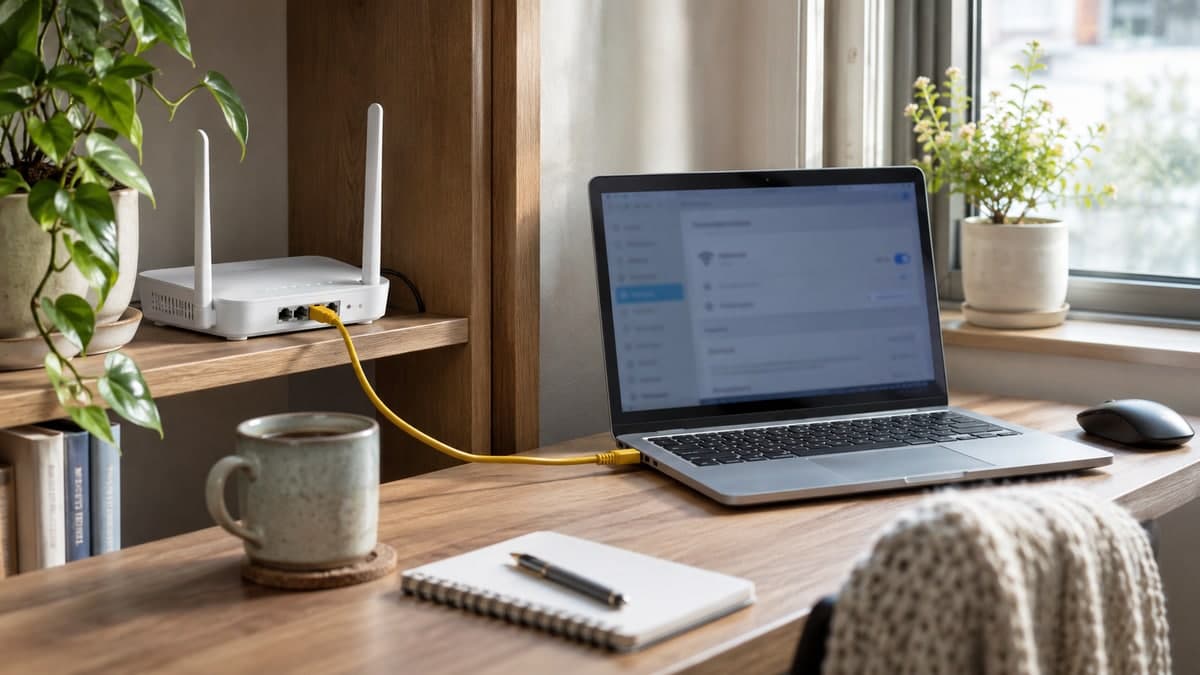
- A computer or phone connected to the router, ideally by cable for the settings changes.
- Twenty to thirty minutes, at a time when a short loss of connection won't disrupt anyone.
- A safe place, such as a password manager, to store new passwords.
How to secure your router, step by step
Menus differ between brands and internet providers. The settings below are common, but names vary, so look for similar wording and use the manufacturer's own help pages if you get stuck.
- Sign in to the router. Type the address on the label into a browser, often 192.168.0.1 or 192.168.1.1, or open the manufacturer's app.
- Change the admin password. This is the password for the settings page, not the Wi-Fi password. Make it long and unique and store it in your password manager.
- Update the firmware. Look for a section such as Administration, System or Firmware update. Install any update, and turn on automatic updates if offered. Routers from internet providers are often updated by the provider, but it is worth checking.
- Set Wi-Fi security to WPA3 Personal. If some older devices can no longer connect, use the WPA2/WPA3 transitional or mixed mode instead. Don't use WEP, WPA or TKIP. Apple's router guidance gives the same advice.
- Choose a strong Wi-Fi password. A long passphrase of several random words is easier to type and harder to guess than a short complex one.
- Rename the network if needed. Avoid your name, address or business name, and keep the network visible. Hiding the network name doesn't add real security.
- Turn on a guest network. Use it for visitors and, ideally, for smart TVs, cameras and other gadgets. Choose a different password, and enable any option that stops guests from seeing your other devices.
- Turn off WPS. Wi-Fi Protected Setup lets devices join by pressing a button or entering a PIN. It is convenient but has had known weaknesses, especially the PIN method, and you rarely need it.
- Turn off UPnP where you can. Universal Plug and Play lets devices open connections through the router automatically. Switch it off, test your games consoles, video calls and other apps, and only turn it back on, or set up specific port forwarding, if something genuinely needs it.
- Turn off remote management. Unless your IT provider manages the router remotely, disable access to the settings from the internet.
- Restart and reconnect. Devices will need the new Wi-Fi password. Check everything works.
Your router is the front door to every device you own. Most people never change the lock it came with.
Extra steps for small offices
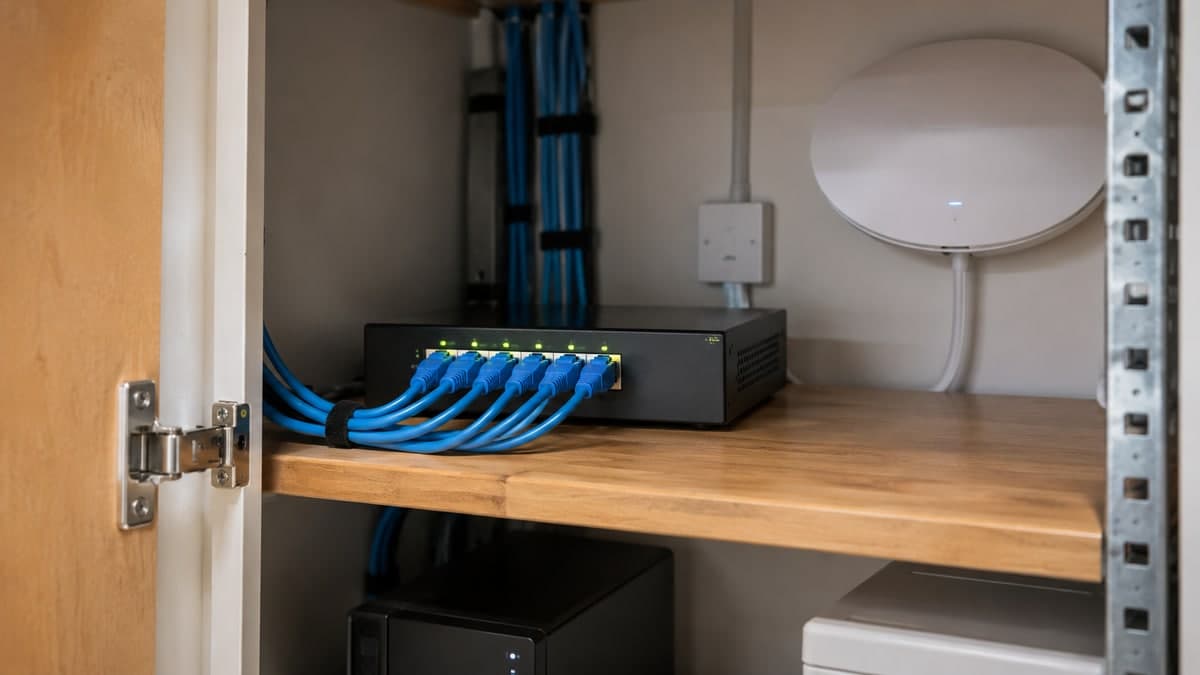
- Separate networks. Keep staff, guests and devices such as card readers or cameras apart, using guest networks or VLANs if your router supports them.
- Use business-grade kit that receives regular security updates, and know when its support ends.
- Record the settings and who has the admin password, and change it when someone with access leaves.
- Plan for outages. A mobile hotspot can keep essential work going if the line or router fails. Our guide on how to back up business data covers wider outage planning.
- Ask your IT provider to confirm that remote management, if used, is protected with strong authentication.
Common mistakes
- Leaving the default admin password, or never knowing it existed.
- Running a router that no longer gets updates. If the manufacturer lists it as end of life, replace it.
- Using the same password for the admin page and the Wi-Fi.
- Putting every gadget on the main network, so a weak smart plug or camera sits next to your work laptop.
- Turning off UPnP and forgetting, then blaming the internet when an app stops working. Note what you changed.
- Resetting the router without a plan. A factory reset restores the default settings, so repeat these steps afterwards.
Checklist
- Admin password changed and stored safely.
- Firmware up to date, with automatic updates on.
- WPA3 Personal or WPA2/WPA3 mixed mode, and a long Wi-Fi passphrase.
- Guest network on for visitors and smart devices.
- WPS off, UPnP off unless needed, remote management off.
- Router model still supported by its manufacturer.
A secure router protects the devices behind it, but not the accounts you sign in to. Add passkeys next, using our guide on how to set up passkeys.