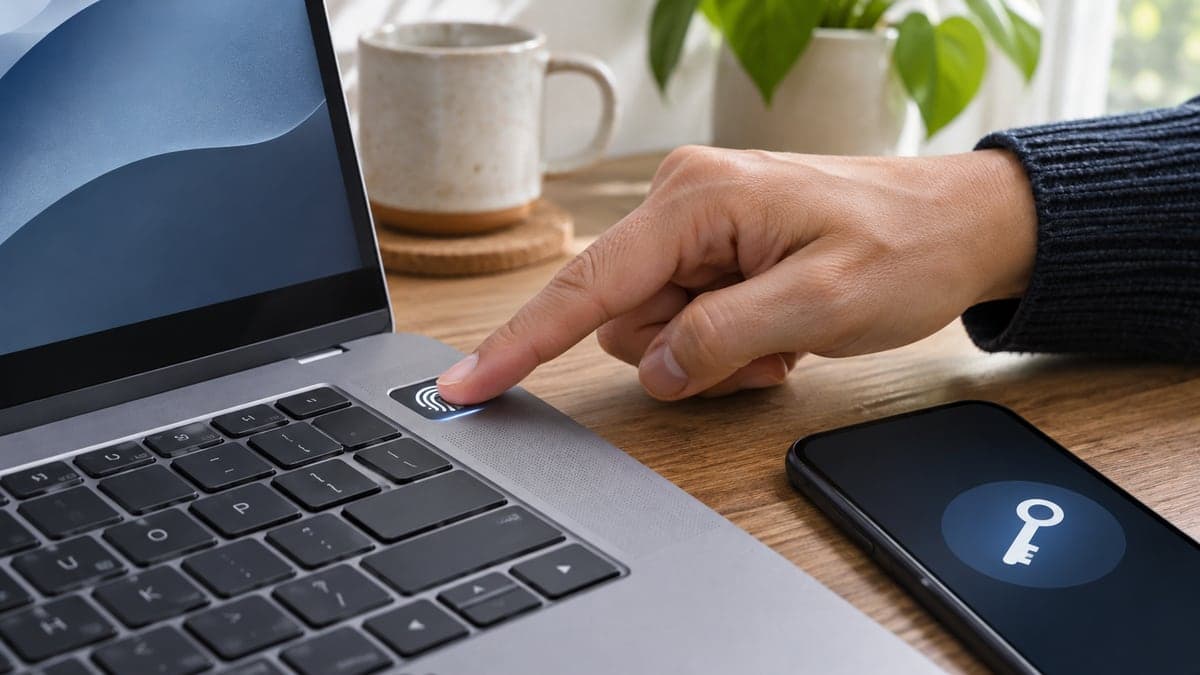
This guide shows how to set up passkeys on an iPhone, an Android phone, a Windows PC and a Mac. A passkey replaces your password with a secret that stays on your device and is unlocked by your face, fingerprint or screen lock, so there is nothing for a scammer to steal or trick you into typing. Setting one up takes a minute per account.
Passkeys are built on open standards from the FIDO Alliance, and each one is tied to the real website it was made for. That is why a fake login page cannot use it, and why we have argued that every company needs a passkey plan.
What you need
- A phone or computer with a screen lock: a passcode, PIN, fingerprint or face unlock.
- An up-to-date operating system and browser. Older versions may not offer passkeys.
- For iPhone and Mac: an Apple Account with two-factor authentication and iCloud Keychain turned on.
- For Android: a Google Account signed in on the phone, with Google Password Manager available.
- For Windows: Windows Hello set up with a PIN, fingerprint or face recognition.
- A list of the accounts that matter most: email, banking, cloud storage and social media.
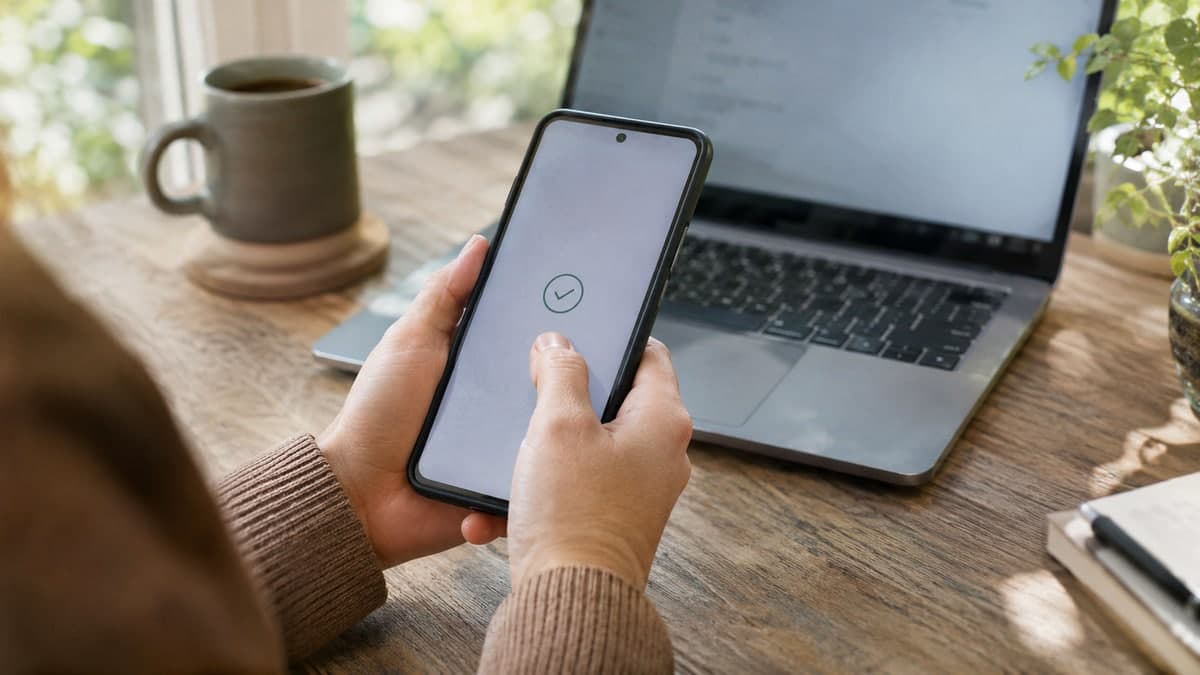
How to set up passkeys, step by step
The pattern is the same everywhere. You turn on the place where passkeys are stored, then you visit each account and add a passkey from its own settings.
iPhone and iPad (iCloud Keychain)
- Open Settings, tap your name and go to iCloud. Make sure Passwords (sometimes shown as Passwords and Keychain) is switched on, so passkeys sync to your other Apple devices.
- Check that a passcode and Face ID or Touch ID are set up, usually under Settings > Face ID & Passcode.
- Sign in to a website or app that supports passkeys, open its account or security settings and choose an option such as Create a passkey.
- Confirm with Face ID, Touch ID or your passcode. The passkey is saved and appears in the Passwords app on recent versions of iOS.
Android (Google Password Manager)
- Make sure your phone has a screen lock, usually under Settings > Security or Settings > Security and privacy.
- Check that you are signed in with your Google Account and that Google Password Manager is your password service. The exact menu varies by phone maker.
- To add a passkey for your Google Account itself, go to your Google Account's Security page and look for Passkeys and security keys.
- For other services, open the app or site, go to its security settings, choose to create a passkey and confirm with your fingerprint, face or screen lock.
Windows PC (Windows Hello)
- Set up Windows Hello, usually under Settings > Accounts > Sign-in options.
- In a browser such as Edge or Chrome, sign in to a site that supports passkeys and choose to create one in its security settings.
- When prompted, choose to save it on this device and confirm with your Windows Hello PIN, face or fingerprint. Your browser or password manager may offer to save it instead, which can make it available on other devices.
- On Windows 11 you can review saved passkeys, usually under Settings > Accounts > Passkeys.
Mac (iCloud Keychain)
- Open System Settings, click your name, then iCloud, and make sure Passwords or Keychain syncing is on.
- Sign in to a site in Safari, or another browser that supports passkeys, and choose to create a passkey in its settings.
- Confirm with Touch ID or your Mac password. You can find it later in the Passwords app or under System Settings > Passwords on older versions of macOS.
If a computer has no passkey for an account, you can usually sign in with your phone instead: choose to use a passkey from another device, scan the QR code with your phone and approve it there.
A passkey is the rare security upgrade that is also easier to use. The hard part is not the technology. It is spending twenty minutes on your most important accounts.
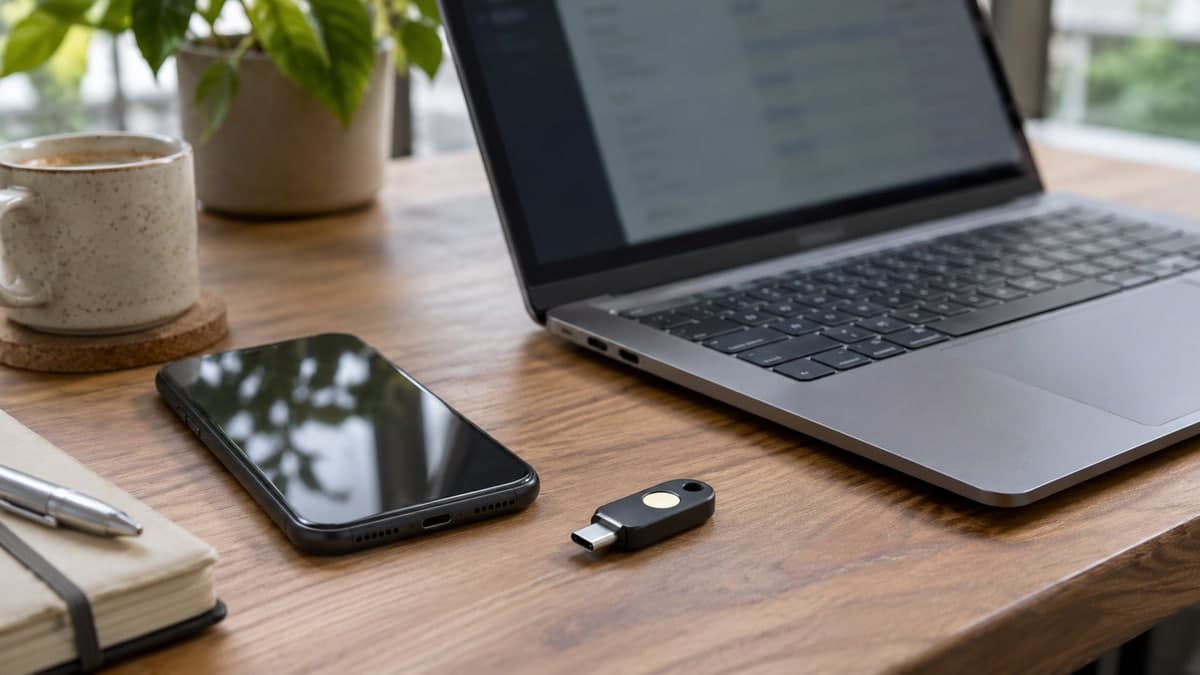
What to do if you lose a device
Passkeys saved to iCloud Keychain or Google Password Manager are synced to your account, not just to the phone. Losing the phone does not mean losing the passkeys, but you do need to act quickly.
- Lock or erase the lost device with Apple's Find My or Google's device finder (Find My Device, now called Find Hub on many phones).
- Sign in to your Apple or Google account on another device and remove the lost one from your list of trusted devices.
- On a replacement phone, sign in to the same account. Your synced passkeys should return once setup and syncing complete.
- Passkeys saved only on one Windows PC or one security key do not sync. For those accounts, sign in with your backup method and create a new passkey on the new device.
- In each important account's security settings, delete any passkey you no longer recognise or that belonged to the lost device.
Common mistakes
- Only one way in. Keep at least two sign-in methods for important accounts, such as passkeys on two devices, or a passkey plus a strong password in a password manager.
- Ignoring recovery options. Check your recovery email, phone number, recovery contact or backup codes now, not after something goes wrong.
- Mixing up password managers. If you use a third-party password manager, decide where passkeys should live so you can find them later.
- Falling for fake prompts. A passkey cannot be phished, but your account recovery can be. Treat unexpected reset codes and calls as suspicious, as our guide on how to spot AI phishing explains.
Checklist
- Screen lock and biometrics turned on for every phone and computer.
- iCloud Keychain or Google Password Manager syncing turned on.
- Passkeys created for email first, then banking, cloud storage and social media.
- A second device or method registered for each important account.
- Recovery details checked on your Apple, Google and Microsoft accounts.
- You know how to lock or erase a lost device.
Menus change between software versions, so if a step looks different, follow the vendor's own help pages linked below. Once your accounts are covered, read how attackers are targeting logins and help desks to see why it matters.