If you want to know how to create strong passwords, the rule is simple: make each one long and use it for one account only. Three random words joined together are a good way to build a password you can remember, and a password manager can create and remember long random ones for everything else.
Passwords are not going away overnight, even as passkeys replace them on more sites. Most of us still have dozens of accounts that rely on a password, and the weakest one is often the way in.
What makes a strong password
Attackers rarely guess passwords one at a time. They use software that tries common passwords, words with predictable changes and passwords leaked from other sites. A strong password resists all three.
- Long. Length makes a password far harder to crack. Swapping "a" for "@" adds little, because cracking tools expect it.
- Unique. If you reuse a password and one site is breached, criminals will try it on your email, bank and shopping accounts.
- Unpredictable. Avoid names, birthdays, pet names, football teams and keyboard patterns like "qwerty".
The UK NCSC recommends three random words, such as a made-up combination of three unrelated words you can picture. NIST's guidance also favours length over complicated composition rules.
Many password managers and browsers can also warn you when a saved password has appeared in a known data breach, or when you have used it more than once. Treat those warnings as a to-do list: start with the accounts that matter most and change those passwords first.
The best password is one you never have to remember. Save your memory for one strong master password and let software do the rest.
What you need
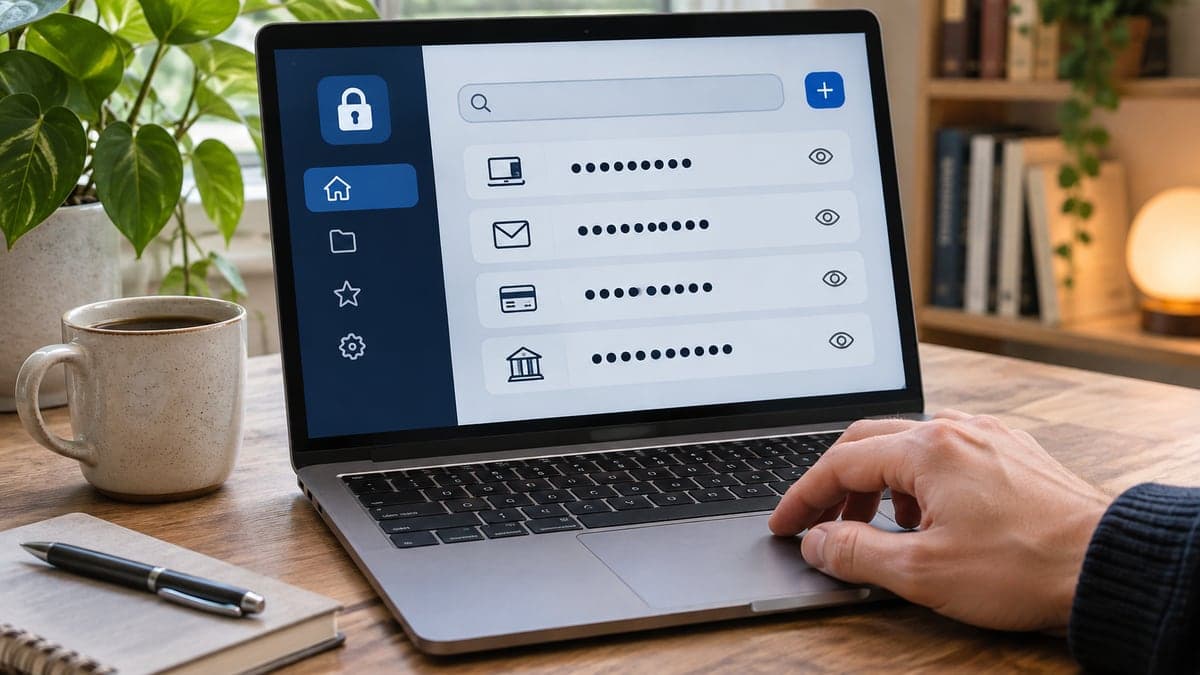
- A password manager. Options include the one built into your phone or browser, such as Apple's Passwords app or Google Password Manager, or a standalone app that works across all your devices.
- Your devices: phone, computer and tablet.
- About an hour for the first session, plus a few minutes whenever you next sign in to other accounts.
How to create strong passwords, step by step
- Pick your master password. Choose three or more random words, add more if you like, and do not use it anywhere else. This is the one password you must remember.
- Write the master password down once, safely. Keep it somewhere physical and private, such as a sealed envelope at home, until you know it by heart.
- Choose and install a password manager. If all your devices are from one company, the built-in manager may be enough. If you mix iPhone, Android and Windows, a cross-platform manager is usually easier. Install its app and browser extension.
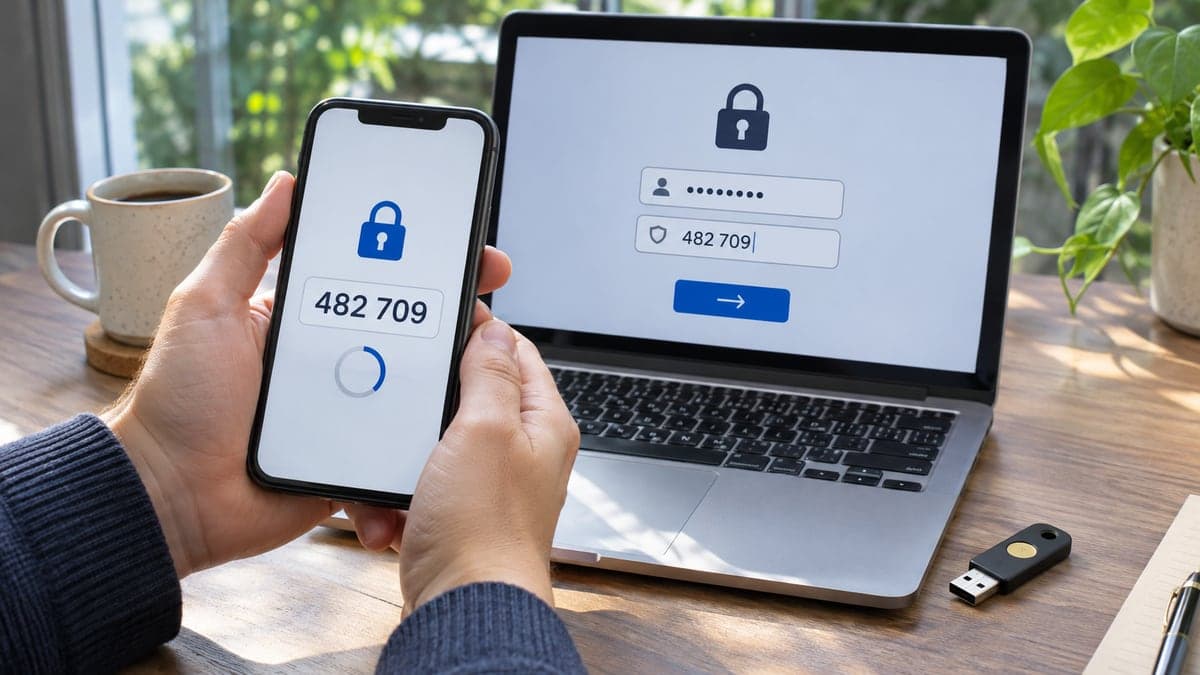
- Turn on two-factor authentication for the manager. Our guide on how to turn on two-factor authentication explains the options.
- Set up recovery. Save any recovery key or emergency access option the manager offers and store it offline.
- Import saved passwords. Most managers can import from your browser. Afterwards, consider turning off the browser's own saving so passwords are not stored in two places.
- Fix your most important accounts first. Change the passwords for email, banking, your Apple, Google or Microsoft account, and work tools, using the manager's generator.
- Let the manager fill passwords for you. A manager only fills a password on the real website it was saved for, which helps protect you from fake login pages.
- Work through the rest over time. Each time you sign in somewhere with an old password, replace it with a generated one.
Password managers for small teams
If you run a small business, a business plan from a password manager lets staff share logins safely, for example a shared social media account, without emailing passwords around.
- Give each person their own account; never share a master password.
- Put shared logins in shared vaults or folders with only the people who need them.
- When someone leaves, remove their access and change any shared passwords they could see.
- Keep an admin recovery option so the business is not locked out if one person is unavailable.
Common mistakes
- Reusing a "good" password. A strong password used twice is only as safe as the weaker site.
- Small variations. "Summer2025!" becoming "Summer2026!" is exactly what cracking tools try.
- Saving passwords in a document or spreadsheet. Anyone who gets the file gets everything.
- Truthful security questions. Your mother's maiden name or first school can often be found online. Where a site insists on security questions, store a random answer in your password manager instead.
- No two-factor on email. Your email can reset most other passwords, so protect it first.
- Typing passwords into links from messages. Go to the site directly, and learn how to spot AI phishing attempts.
Checklist
- A strong, unique master password that you can remember.
- A password manager installed on every device you use.
- Two-factor authentication turned on for the manager and your email.
- Recovery key or emergency access stored offline.
- New, generated passwords for email, banking and work accounts.
- Old, reused passwords replaced as you go.
- For teams: individual accounts, shared vaults and an offboarding routine.
Features and menus differ between password managers, so follow your provider's own help pages when setting it up. For business accounts, also consider moving to passkeys, as our opinion piece on why every company needs a passkey plan argues.